User manual/Getting started
Studio tour
Menus, section bar, project tree, canvas and inspector, and the basic editor gestures.
3 min read
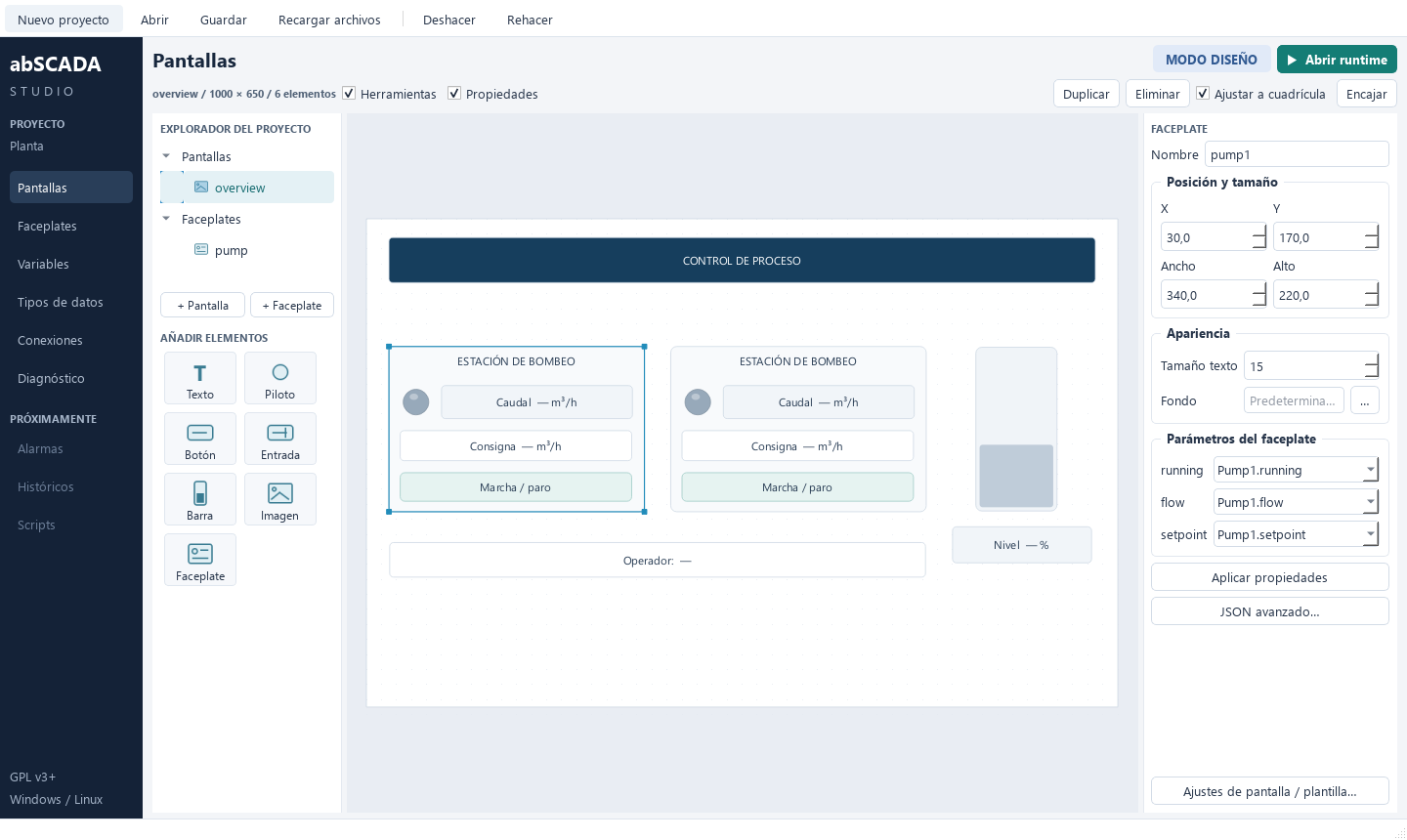
Studio is organised in fixed areas. The DESIGN MODE badge is always visible so engineering is never confused with operation.
Menus and top bar
| Menu | Contents |
|---|---|
| File | New, open, recent projects, save, reload from disk and versions |
| Edit | Undo, redo, copy, cut, paste, duplicate and delete |
| Project | Project settings, colour palette, external libraries, users and roles, OPC UA server and certificates, and review |
| Tools | Visual test, PLC simulators and backup of the logged data |
| Help | Installed version and the application log folder |
Only Save, Undo and Redo remain below. With pending changes ● Unsaved changes appears: you can move between sections without losing anything, but changes are only written to disk when you save (Ctrl+S or click the badge).
Studio has its own interface language setting, independent of project texts.
Section bar (left)
Screens, Variables (with a Data types tab for structures), Connections, Alarms, Logging, Scripts and Diagnostics.
Project tree
Visible in the Screens section:
- + Create adds a screen, a folder or a library object.
- Screens are organised in folders; drag screens or folders onto another folder to move them. Folders only organise Studio: runtime ignores them.
- Right click a screen: rename (buttons, containers and the startup screen follow), duplicate, move to folder, use as startup screen and delete (refused while something uses it). Faceplates are renamed, duplicated and deleted the same way.
- The startup screen is shown in bold with «▶ inicio».
- The Elements tab lists what the open screen contains, from back to front: select items that overlap, lock them, hide them at design time and group them.
Below are the drawing tools, grouped as Indicators and commands, Paths and shapes and Viewers and composition, with a search box. Insert with a click or drag onto the canvas.
Canvas (centre)
| Gesture | Result |
|---|---|
| First click | Selects without moving |
| Drag afterwards | Moves the object |
| Ctrl + click / rubber band | Multi-select |
| Eight handles | Resize |
| Arrows / Shift + arrows | Move 1 px / one grid step |
| Ctrl + C / X / V | Copy, cut and paste, also between screens |
| Ctrl + D / Del | Duplicate / delete |
| Ctrl + wheel | Zoom |
| Middle button | Pan |
| Esc or click on background | Clear selection |
Inspector (right)
It never hides. With nothing selected it edits the screen: title, size, background and grid. With an object it edits its properties: text, colours, variable, action. With several objects it shows the common properties. Changes apply immediately, there is no apply button.
Propiedades dinámicas… (dynamic properties) opens the appearance changes driven by the process. Avanzado → edit as JSON is left for expert users.
Lists
In Variables, Alarms, Logging… the 🔍 Filter box only filters: items are created with + New variable or + Add. While a filter is active a notice shows how many rows are visible and lets you clear it.
Review
Project → Review finds incomplete commands and unknown properties before they reach operation.
Libraries tree
The Librerías section contains Project, Standard and linked external libraries. Drag an object onto the screen or use the Objeto de librería picker, then bind its parameters to variables. Project objects can be organised into folders. See Libraries.
Editing language
The top-bar selector changes the language of project texts in the canvas and inspectors. Configure languages in Project → Project settings and translate them in Project → Project texts. See Project languages.