Example project · examples/brewery
Example SCADA for a 10 hl brewery with recipes, fermentation and utilities.
- Brewhouse
- 10 hl
- Fermenters
- 3 × 12 hl
- Recipes
- 4 in the PLC
- Sequence
- 12 steps
- Communication
- Encrypted OPC UA
- Security
- 5 roles
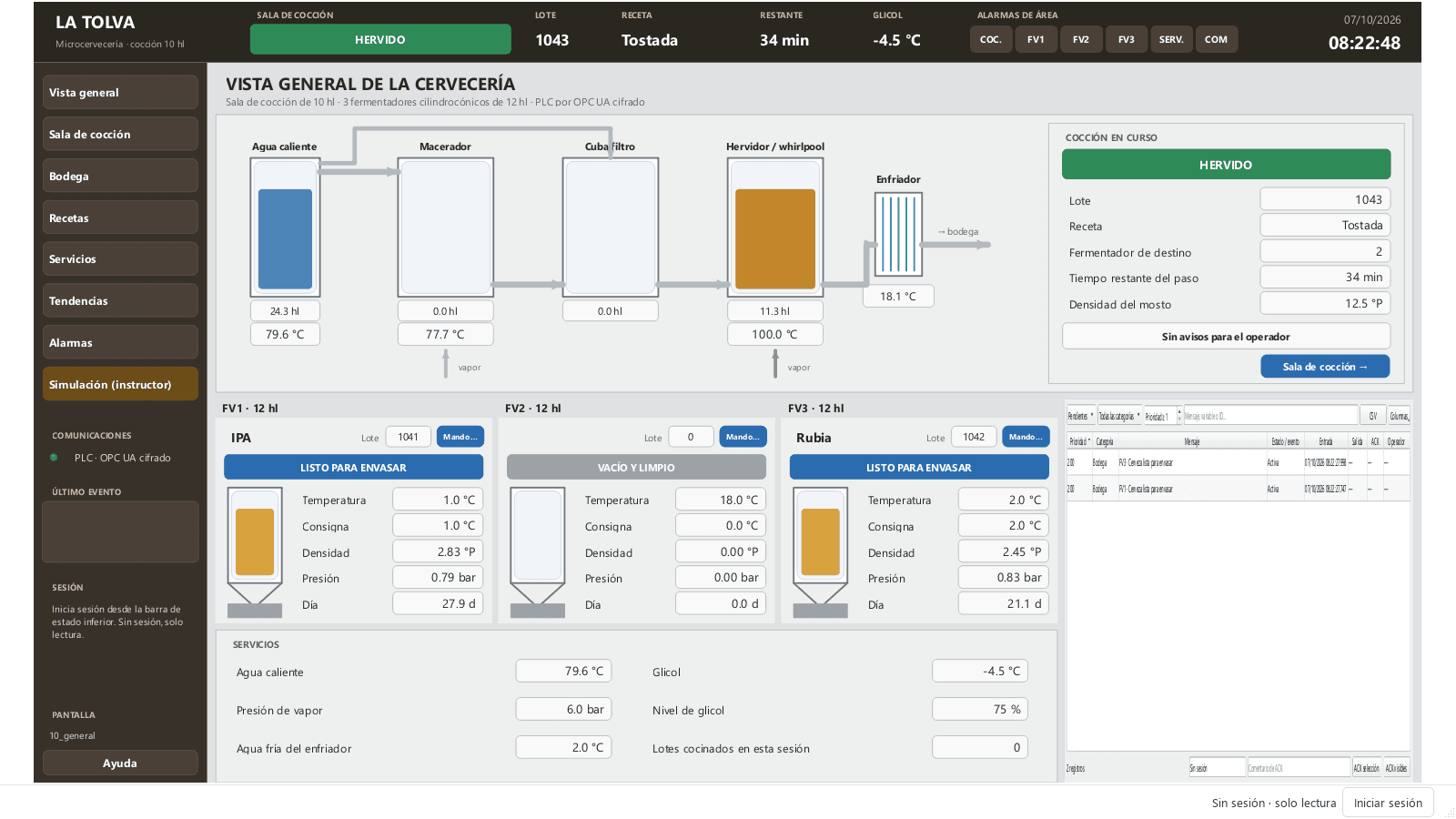
Runtime screenshots with the simulated PLC. Lines show the fluid in circulation: blue water, amber wort, gold beer and violet steam.
The PLC stores four recipes. When a batch starts it copies the chosen one: mash rests, boil and fermentation profile all come from it. Pick one to see its profile (in recipe time; the simulator compresses it: 1 min = 1 s and 1 day = 1 min).
- Gravity
- 15.5 → 2.8 °P
- Attenuation
- 82 %
- Boil
- 75 min
- In the cellar
- 15 days
━ Mash tun and kettle temperature━ Fermenter setpoint┅ Gravity (°P)
The PLC runs the brew step by step. At mash-in and at each hop addition it asks for a manual action with an amber prompt and waits for confirmation. HOLD freezes the sequence and ABORT drains the batch, after confirmation.
- 01
Water fill
Hot liquor blended to the strike temperature.
- 02
Mash-in
Waits for the operator to add the malt.
- 03
Protein rest
Optional: skipped when the recipe gives it 0 min.
- 04
Saccharification
The main rest, with regulated steam.
- 05
Mash-out
Up to 77–78 °C before lautering.
- 06
Transfer and recirculation
The mash moves to the lauter tun and recirculates.
- 07
Lautering and sparging
Wort to the kettle; rakes if the bed gets stuck.
- 08
Heat-up
Up to the boil.
- 09
Boil
Only counts while boiling; asks for the hops.
- 10
Whirlpool
15 minute rest.
- 11
Cooling and transfer
Through the wort cooler into the chosen fermenter.
- 12
CIP cleaning
And back to idle.
Without a session, runtime is read-only. Role permissions determine which commands are available and who can edit recipes. Pick a role:
- ✓View screens, trends and alarmsEvery screen
- ✓Choose recipe and fermenter, start, hold and abortBrewhouse · operate
- ✓Switch a fermenter to a manual setpointCellar · Command… · operate
- ✓Acknowledge alarmsAlarms · acknowledge
- ✓Edit and save recipesRecipes · recipes
- ×Create and change accountsStudio · Users and roles · manage_users
- ×Read the SCADA from another programOPC UA server · port 4850 · opcua
Every command is audited with the user who gave it and its origin: HMI, OPC UA or script. Roles, accounts (only each password's hash) and connection passwords travel with the project.
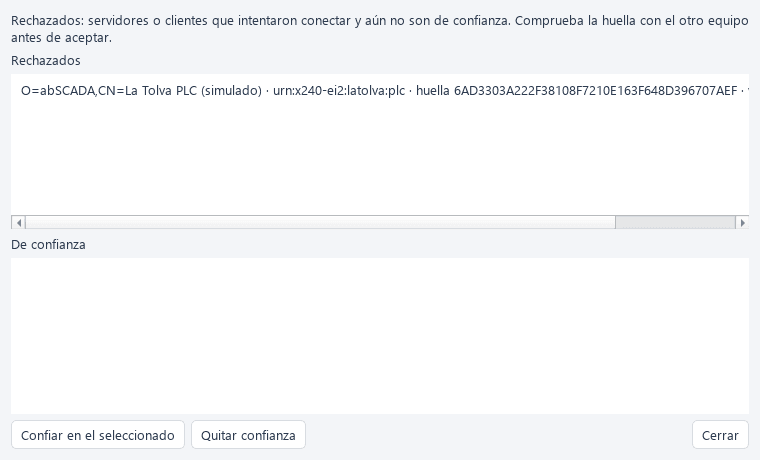
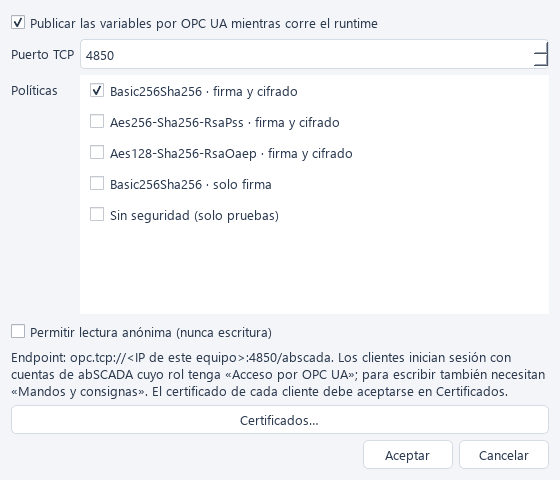
The SCADA reads the PLC over OPC UA with signing and encryption and, at the same time, publishes its own variables for an MES. No certificate is accepted on its own: the first connection leaves the other side's certificate in «Rejected» until someone checks its thumbprint and trusts it.
OPC UA · client
PLC_Cerveceria
Basic256Sha256 · sign and encrypt · 1 s
Brewhouse, three fermenters, utilities and recipe manager, with nodes nsu=urn:latolva:plc;s=<object>.<field>.
OPC UA · server
abSCADA server
opc.tcp://<host>:4850/abscada
Publishes every variable. Login with abSCADA accounts; writing needs «Commands and setpoints» and is audited.
Project PKI
Certificates
pki/own · trusted · rejected
The project's certificate and trust lists travel with it: copy it to another PC and the PLC still trusts it.
| Signal | Warning | Alarm |
|---|---|---|
| Kettle foam | 60 % | 80 % |
| Lauter bed | 150 mbar | 200 mbar |
| Fermenter temperature | — | ± 1.5 °C from setpoint |
| CO₂ pressure | 1.6 bar | 2.2 bar |
| Glycol | — | > 0 °C · level < 40 % |
| Steam | — | < 4 bar |
| Stuck fermentation | — | Gravity flat for 1 day |
- 01As the operator, brew a Tostada into FV3 and confirm the malt and the hops.
- 02Trigger foam at the boil and watch the PLC back off the steam.
- 03Fail the glycol chiller and follow the fermenters drifting in the cellar.
- 04Try to save a recipe as the operator: abSCADA asks for another login. Do it as the head brewer.
- 05Make the yeast inactive and wait for the stuck fermentation alarm.
- 06Transfer a ready fermenter to packaging to free it.
The simulated PLC ships inside abSCADA. The first time, accept its certificate in Project → OPC UA certificates.
- 01Download abSCADA for Windows and open abscada.exe.
- 02On the start screen, pick the example and keep «Also start its simulated PLC» ticked.
- 03Click Open runtime in Studio.
| User | Password | Role |
|---|---|---|
| admin | Tolva-Admin-2026 | Administrator |
| maestro | Tolva-Maestro-2026 | Head brewer |
| operador | Tolva-Operador-2026 | Brewhouse operator |
| mes | Tolva-MES-cliente | MES client (OPC UA) |
The accounts already come with the project. These are public demonstration passwords: in a real project, create your own.
Example guide in the manual →Example scope
It is a teaching example, not a certified system. Timings are compressed and the yeast, glycol and CO₂ models are approximate. Safety valves and steam interlocks live in the PLC and in the field, never in the SCADA.