User manual/Operation
Alarms
Categories, conditions, hysteresis, delays, acknowledgement and alarm viewers.
2 min read
Configure
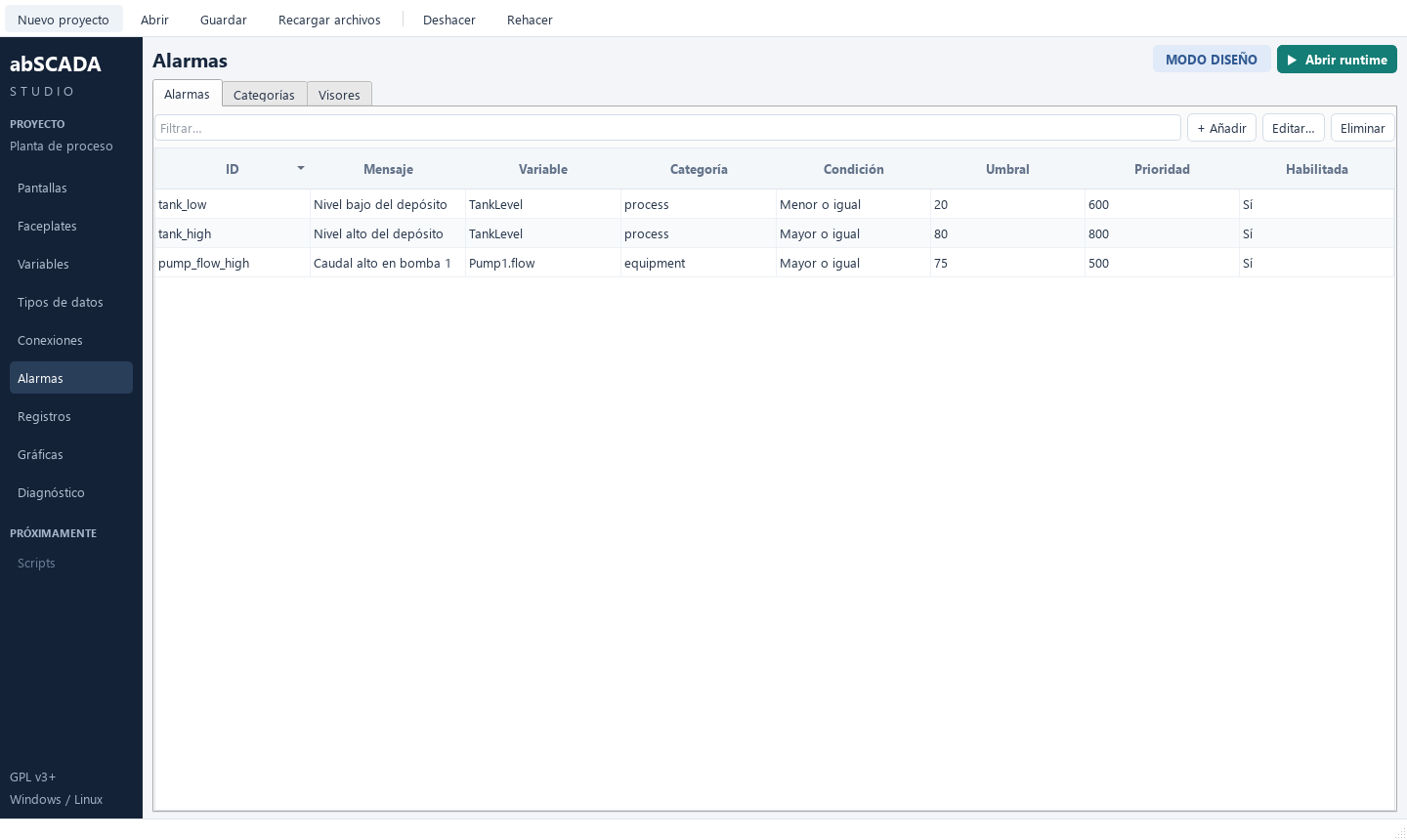
In Studio open Alarms:
- Categories: ID, name and colour (e.g. Process, Maintenance).
- Alarms: message, variable, category, condition, threshold, hysteresis, priority (1000 is highest), on/off delays and whether ACK is required.
Conditions
| Type | Active when | Returns when |
|---|---|---|
| true / false | The bool variable takes that value | It no longer does |
| high | value ≥ threshold | value < threshold − hysteresis |
| low | value ≤ threshold | value > threshold + hysteresis |
| equal / not equal | Exact comparison | It no longer holds |
Delays require the condition to hold for a time before activating or returning. For floats use high/low with hysteresis.
Loss of communication
A bad reading is not treated as a return: an active alarm stays active and pending delays are cancelled until good quality comes back.
Alarm states
| State | Condition | Acknowledgement |
|---|---|---|
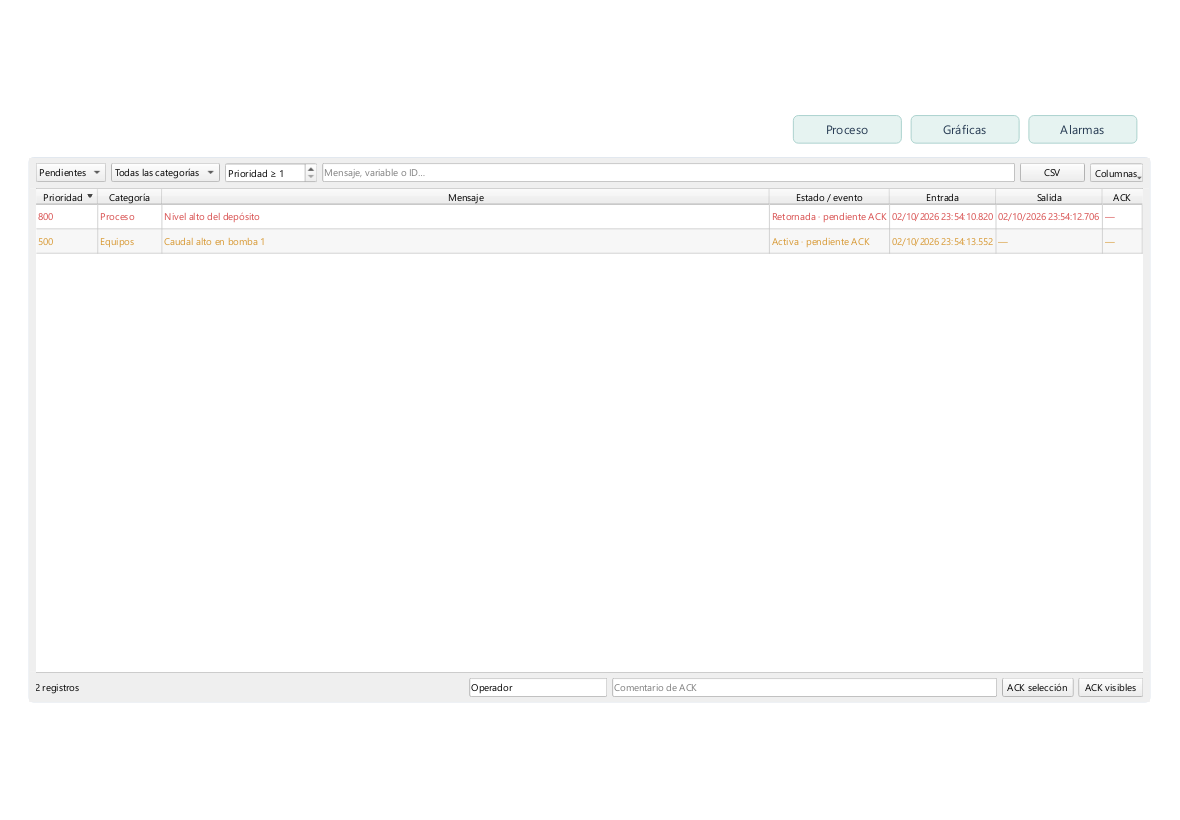
| Active · ACK pending | Active | Pending |
| Active | Active | Acknowledged |
| Returned · ACK pending | Inactive | Pending |
| Closed | Inactive | Acknowledged |
ACK records date, operator and comment. It writes nothing to the PLC and does not clear the condition.
Viewer in Runtime
Add the Alarms control to a screen (minimum 400 × 280) and click Configurar visor… in the inspector (or double click): title, initial mode, categories, minimum priority, columns and whether ACK is allowed. Each viewer owns its configuration; copying the control copies it too. In operation the viewer offers four modes — Pending, Active, History and Events — with date filters, configurable columns, single or multiple ACK and CSV export.
Alarms and their state are stored in runtime/scada.sqlite3 and recovered on restart.