User manual/Engineering
Designing screens
Controls, drawing pipes and paths, layers, alignment, layouts and pop-up windows.
4 min read
Available controls
| Control | Use |
|---|---|
| Text | Static label or variable value with unit and decimals |
| Input | Value editable with a double click in Runtime |
| Button | Toggle, write a value, momentary command, navigate, open pop-up or run a script |
| Lamp | Boolean state with on / off / bad colours |
| Bar | Vertical level between minimum and maximum |
| Gauge | Analog needle: 240° dial, semicircle or thermometer, with warning and alarm zones |
| Text list | Maps values to text (0 → Stopped, 1 → Running) |
| Image | Project PNG or SVG |
| Line, polyline, pipe | Paths with arrows, width and style |
| Rectangle, ellipse | Shapes with fill and stroke |
| Faceplate | Instance of a reusable template |
| Trend, Alarms | Operator viewers |
| Screen container | Area inside a layout |
Analog gauge
Insert Indicador (gauge) from the toolbox and choose its numeric variable. Under Escala (scale) you set:
| Property | Use |
|---|---|
| Minimum / Maximum | Scale range; divisions are computed automatically |
| Style | 240° dial (pressure gauge, tachometer), 180° semicircle (panel meter) or thermometer |
| Warning from / Alarm from | Optional: paint an amber and a red zone up to the maximum |
| Text, unit and decimals | Caption under the pivot and reading format |
The appearance Fondo (fill) colour is the needle or the thermometer liquid. Propiedades dinámicas (dynamic properties) can change it, for instance to red below a minimum pressure. Without a valid reading the needle turns grey and the reading shows —.
Drawing paths
| Tool | How |
|---|---|
| Line | Click at the start and click at the end |
| Polyline | Click per vertex; Enter, double click or right click finishes |
| Pipe | Same, with horizontal/vertical runs and a glossy finish |
Esc cancels, Backspace removes the last point and Shift constrains to horizontal/vertical. Once drawn, drag the vertices or edit their coordinates in the inspector with + Point, − Point and Reverse.
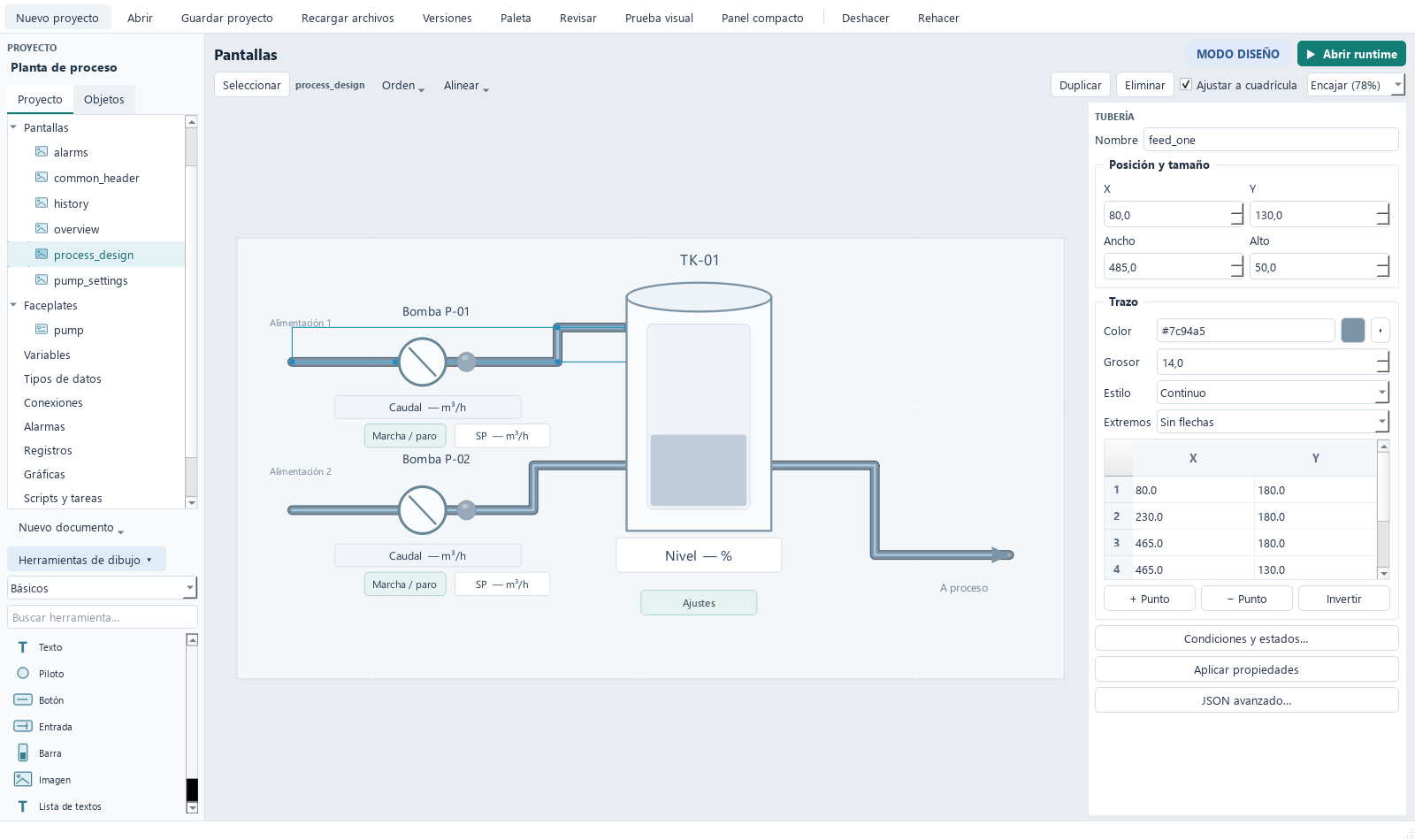
Ordering and aligning
Order brings to front, sends to back or moves one layer, keeping the relative order of the selection. Align uses the combined bounds of the selection. Duplicate and Delete act on the canvas. Copy / Cut / Paste (Ctrl+C / X / V) move elements between screens; a pasted trend or alarm viewer takes its own copy of the configuration.
Text list
- Add a Text list and choose its variable.
- Click Configure texts… and add value → text rows.
- Set the default text for unmatched values.
With bad quality or no reading, — is shown. For states use integer or boolean variables: matching is exact.
Layouts: fixed header, changing content
A layout is an ordinary screen that contains Screen containers; the tree shows it with its own icon.
- Create the header and content screens.
- Create another screen for the layout (+ Create → Screen).
- Add Screen containers, name them (
header,content) and assign their initial screen. - In navigation buttons choose Open screen and Open in → content.
- Right click the layout → Use as startup screen, and save.
Current area navigates inside the button's container; Full window replaces the whole composition.
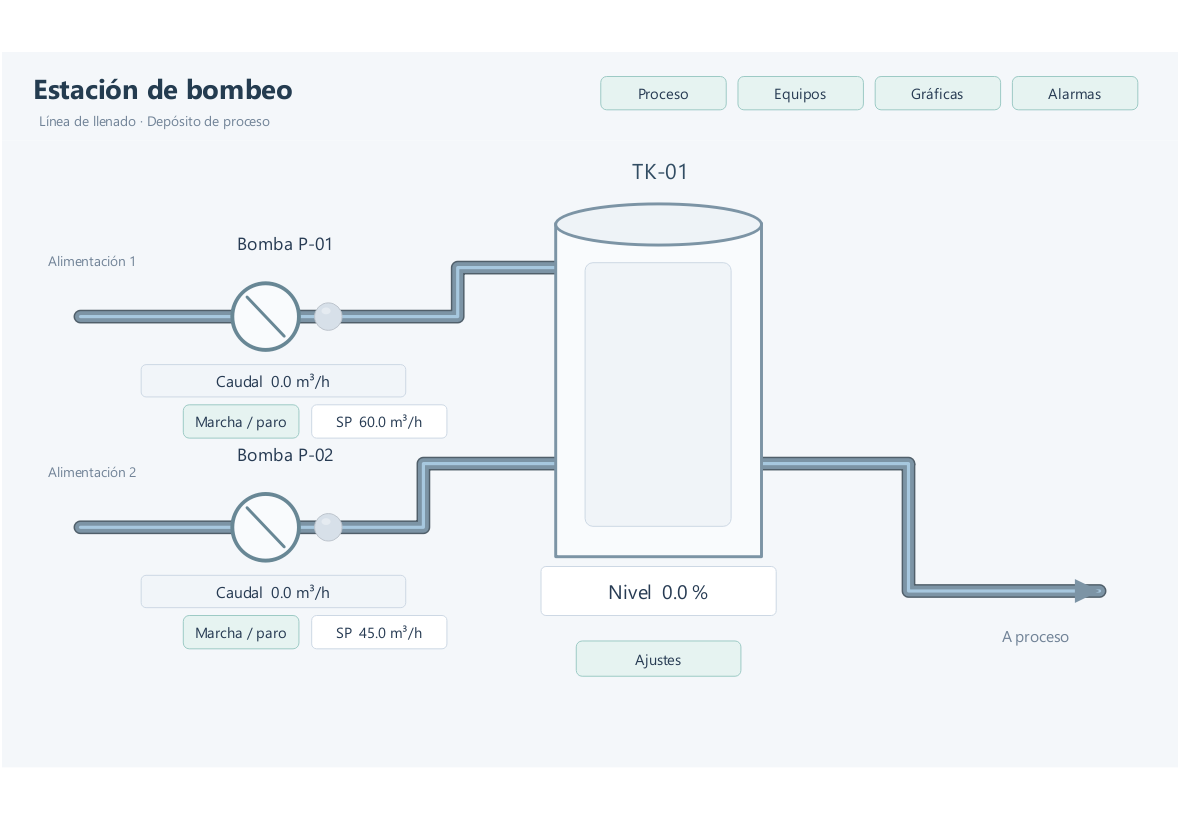
Pop-up windows
A button with Action → Open pop-up opens a screen in its own window. Block main window makes it modal. Each screen has at most one pop-up: opening it again brings it to front. Use Close pop-up or the window's X to close it.
Library objects and permissions
Insert symbols and equipment from Librerías or the Objeto de librería picker. Standard objects can be copied into the project for editing; instances retain kind: "faceplate". Buttons can open library objects as pop-ups and forward their parameters. See Libraries.
Buttons and inputs can declare "permission": "recipes" or another permission; commands default to operate when security is enabled. Hiding a control with a dynamic rule does not replace authorization. See Users and roles.